
Appearance
Software Update
Checks for and installs new software for the player. The row also shows the version currently running.
Quick use
Open Settings from the menu.
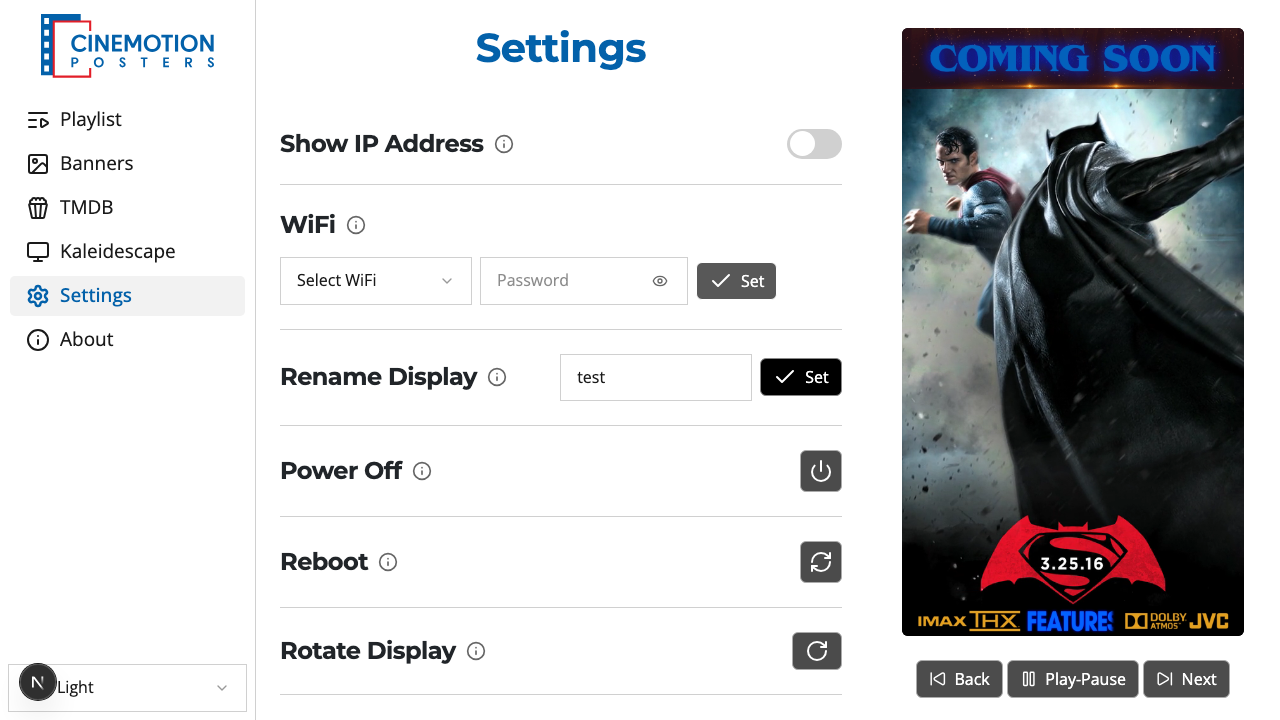
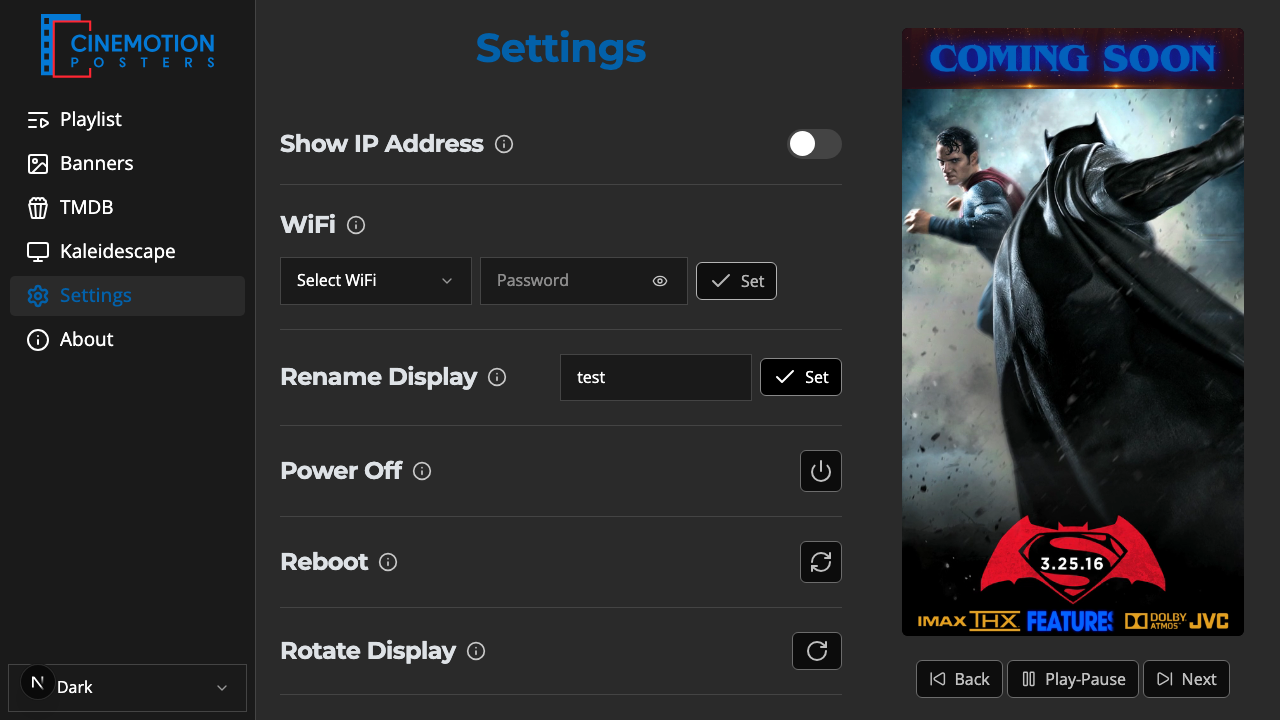
Find the Software Update row.


Click on the

 button.
If the player is already up to date, a short message says so and nothing else happens.
If an update is available, a prompt asks you to confirm. Choose Update to install it, or Cancel to leave things as they are.
The player downloads and installs the update, then restarts — this can take a few minutes.
While it restarts, the app briefly loses contact. Wait a moment, then open the app again.
TIP
Nothing is lost. When the player comes back, playback resumes from where the playlist would be — if it was paused, it returns to the exact poster and position.
Related
- About — company and legal details for the player